Term | Definition / Explanation |
|---|
Add Custom Section Text (Button) | Add Custom Section Text is available directly in the Report Builder and allows you to add your own project-specific content to the report. Custom text sections can be placed before or after individual report modules, giving you the flexibility to include explanations, assumptions, comments, special requirements, or other information that is not automatically generated by Pakera. This makes it easy to customize each report while keeping the standardized report structure intact and avoiding manual edits to the final PDF. |
Add Cut Protection | Use this setting to account for an additional cut protection layer placed on top of the packed parts inside the container. The purpose of this layer is to help protect the contents from accidental damage when the packaging is opened with a knife or other cutting tool. In practice, cut protection can consist of thick paper, corrugated board, or a similar protective sheet placed between the packed parts and the top of the container. When enabled, Pakera accounts for a 5 mm thick protection layer in the available packing space, ensuring that the simulation reserves the additional space required for this protective measure. |
Add Material (Button) | The Add Material button is available in the second workflow step, Packaging Material, and allows you to manually add additional packaging materials that are not already included in the packaging configuration generated from the simulation. You can add materials such as adhesive tape, bubble wrap, compartment dividers, cardboard or foam inserts, cutting protection, delivery slip pockets, edge protection profiles, and other secondary or tertiary packaging materials. The added materials become part of the Bill of Materials and can also be included in packaging cost calculations and the final report. |
Add Segment (Button) | Button in workflow step 3, Transport & Emissions, used to add an additional route segment to the shipment. Each segment can be configured separately and is included in the calculation of the total shipping costs and transport-related emissions. |
Additional Transport Protection | Use this setting to simulate additional protective packaging around individual parts, such as bubble wrap, packing paper, foam, or similar cushioning materials. Pakera represents the protection as a virtual envelope around the part and includes this additional space in the packing simulation. You can define the thickness of the protective material, and Pakera then increases the effective space required around the part accordingly. This allows you to estimate how individual protection influences the number of parts that fit into a container, the packing arrangement, and the overall space utilization. The protective cover is used as a simplified geometric representation and does not model the physical behavior or compression of the actual packaging material. It is intended to provide a practical approximation of the additional space required for transport protection. |
Allow Overhang | This setting is only available in the Packing Mode Smart Stack. When enabled, Container 1 units may extend beyond the outer dimensions of Container 2 in length and width by the configured amount. This can be useful for palletized loads where a defined amount of overhang is permitted. |
Allow package rotation for all higher levels | This setting controls whether complete packaging units may be rotated when they are packed into the next higher packaging level. For example, Pakera may rotate a folding box when placing it into an outer carton, an outer carton when placing it into a pallet box, or a pallet when loading it into a container. Enabling this option gives Pakera more flexibility when building multi-level packaging solutions and can improve space utilization at higher packaging levels. If disabled, the packaging units retain their defined orientation. This setting applies only to package-to-package packing levels. The orientation and rotation of the original part within the first packaging level are controlled separately by the Advanced Root Packing Settings. |
Allowed container 1 rotation for optimal stacking | Enables Container 1 to be rotated during the optimization so Pakera can search for more efficient arrangements. If disabled, Container 1 remains in its defined orientation, which is useful when a specific transport or handling orientation must be maintained. |
Allowed rotation for optimal packing | When this option is enabled, Pakera can rotate parts during the simulation to find more space-efficient orientations and improve the overall packing result. This gives the optimization algorithm more flexibility in arranging the parts within the available container space.
When this option is enabled, all stable positions are taken into account. If this option is disabled, all parts retain the orientation displayed in the 3D viewer (stable position). This is useful when a specific part orientation must be maintained due to handling, technical, quality, or process requirements.
For bulk packing, rotation is always automatically enabled so that parts can be arranged freely within the container. |
Allowed rotations in the container | This slider controls how many alternative rotation variants Pakera evaluates during the simulation. A higher value allows the optimization algorithm to explore more possible rotations, which may improve the packing result but can also increase calculation time. A value of 1 limits the search to the primary orientation, while 2 is the recommended default for a good balance between optimization quality and calculation speed. The maximum value of 5 enables the greatest search depth and evaluates a broader range of alternative orientations and combinations. In Smart Select, this setting applies only to the root-level packing calculation, where the part or mesh is packed into the first packaging level. |
Always Pack the Same Quantity per Packaging Unit | Requires Pakera to use the same number of parts in each packaging unit at the selected level. This can be useful for standardized pack quantities, easier material planning, and more consistent logistics processes. |
Approve Solution X for Workflow (Button) | This button is only available in the Packing Mode Smart Select. It allows you to select one of the suggested packaging solutions 1 to 5 and approve it as the basis for the subsequent workflow steps. Once approved, the selected solution and its calculated values are carried forward into Packaging Material, Transport & Emissions, Report Builder, and the Approval Process. |
Billing Basis for Transport: Actual Gross Weight | Freight costs are calculated based on the actual physical gross weight of the shipment, including the product and all packaging.
The calculation is: Freight Cost = Gross Weight × Rate per Weight Unit For example, if the shipment weighs 500 kg and the agreed freight rate is €0.80/kg, the calculated freight cost is €400. |
Billing Basis for Transport: Fixed Rate | Freight costs are based on a predefined fixed price for the shipment, route, container, or transport unit, independent of the actual weight or transport distance.
The calculation is: Freight Cost = Agreed Fixed Rate For example, if the agreed-upon price for a container shipment from Shanghai to Hamburg is €2,200, the freight costs amount to €2,200 plus incidental freight charges. |
Billing Basis for Transport: Per Kilometer | Freight costs are calculated based on the transport distance and the configured price per kilometer.
The calculation is: Freight Cost = Transport Distance × Rate per Kilometer For example, a transport distance of 600 km at €1.50/km results in estimated freight costs of €900. The calculated or manually entered distance is used for this billing method. |
Billing Basis for Transport: Volumetric Weight | Freight costs can be calculated based on the space occupied by a shipment rather than only its actual physical weight. Pakera calculates the volumetric weight from the shipment dimensions using the configured volumetric divisor: Volumetric Weight = Length × Width × Height / Volumetric Divisor If the calculated volumetric weight is higher than the actual gross weight, the volumetric weight can be used as the relevant billing weight for the freight calculation. Pakera uses a default divisor of 5,000, but you can adjust this value individually to match the rules defined by your carrier or freight agreement.
This billing method is commonly used for air freight and other transport services where shipment volume is an important cost driver. |
Billing Basis for Transport: Weight or Measure (W/M) | Weight or Measure is a freight billing method where the shipment is charged based on either its weight or its volume, depending on which produces the higher number of chargeable units under the applicable freight tariff. It is commonly used in sea and general cargo freight. For example, if the agreed tariff defines one W/M as either 1 metric ton or 1 cubic meter, a shipment weighing 2 tonnes but occupying 5 m³ is charged as 5 W/M. The resulting freight cost is: Freight Cost = Chargeable W/M × Rate per W/M The exact W/M conversion rules must follow the applicable carrier or freight agreement. |
Bill of Material (BOM) | The Bill of Material (BOM) provides a structured overview of all containers and load carriers required for the calculated packaging solution. It summarizes the complete packaging hierarchy in one table, from the first packaging level through outer packaging and pallets to the final transport container. For each packaging level, the BOM shows key information such as the package name, outer and inner dimensions, estimated gross weight per unit, estimated total gross weight, and the total quantity required. This makes it easy to see which packaging units are needed and in what quantities, providing a clear basis for packaging planning, material requirements, and further cost calculations. |
Bulk Packing | Parts are packed loosely inside the container without a predefined position or fixed packing pattern. Bulk Packing is particularly suitable for robust parts and focuses on making efficient use of the available container volume with minimal packing effort. |
CAD files | Pakera supports the CAD file formats STEP, OBJ, and STL for packaging simulations. Your original CAD files are never uploaded to or stored by Pakera. Before any data is transferred, the original geometry is automatically converted into a simplified geometric shell, or mesh, containing only the geometric information required for the simulation. During this conversion process, unnecessary model information and metadata are removed, helping to minimize the exposure of sensitive CAD and intellectual property data. |
Clear All (Button) | The Clear All button removes the currently applied filters and search criteria from the Dashboard. This resets the project view and displays all available projects again. |
Containers: My Containers | A container created by a user for their own use. New custom containers can be created and managed in the Container Manager. |
Containers: My Company Containers | A container created by a company for standardized use across teams. Company containers can only be created and managed by administrators or users with the required permissions. |
Containers: Favorites | Your favorite containers for quick and easy access. Favorites can be selected and managed in the Container Manager. |
Compartments | Each part is placed in a separate, defined compartment within the container. This method helps reduce movement and contact between parts and provides a highly repeatable packing arrangement when protection and process reliability are important. |
Compliance Score | A score between 0 and 8 that summarizes the result of the Total Compliance Assessment. A higher score indicates that more of the eight Smart Checks have been successfully passed. |
Container Manager | The Container Manager is your central library for packaging and load carriers in Pakera. It includes more than 180 predefined containers that are ready to use in your simulations, helping you start faster without creating common packaging types manually. You can also create, manage, and reuse your own containers with relevant properties such as dimensions, empty weight, load capacity, and other logistics parameters.
The library includes standardized Maxi Letters, Folding Boxes, Pallet Cartons, Pallets, Containers, Mesh Boxes, SLC Containers, and Euro Containers.
Companies can additionally create and maintain shared containers that are available across the entire organization. This helps standardize container data, avoid duplicate entries, and ensure that teams work with one library. |
Container Material | Material of a container or load carrier. |
Collaboration | Here you can invite and manage both internal and external contacts and companies who can be involved in collaborative workflows, such as reviewing and approving packing instructions. This makes it easy to bring the right people into the process and enables efficient collaboration across teams, departments, and external partners. |
Dashboard | The Dashboard provides an overview of your Pakera activities, projects, and relevant information. Use it as a central starting point to monitor and access your packaging work. |
Distance (Route Segment) | Distance refers to the transport distance of one individual Route Segment. Each segment has its own distance based on the defined origin and destination and is used for the respective freight cost and emissions calculations. |
Emissions - kgCO₂e | Emissions represent the total greenhouse gas emissions associated with the calculated transport operation, expressed in kilograms of CO₂ equivalents (kg CO₂e). CO₂e converts the climate impact of different greenhouse gases into a common unit based on their global warming potential. This is the key absolute value for quantifying the climate impact of a shipment and can be used as an input for corporate greenhouse gas accounting and sustainability reporting, subject to the applicable reporting methodology and organizational boundaries. |
Empty Space | Empty Space is the unused volume remaining inside a container after all parts or products have been packed. It indicates how much of the available container volume is not utilized by the packed items. |
Empty Volume | Empty Volume is the unused space remaining inside a container or load carrier after the parts have been packed. It is calculated as the available container volume minus the volume occupied by the packed parts and represents the space that remains unutilized in the calculated packaging solution. |
Empty Weight | Empty Weight is the weight of the empty container or packaging before any parts, products, or additional packaging materials are added. The empty weight of containers can be edited in the Container Manager. |
Enter Compartments per Direction | When automatic compartment sizing is disabled, you can manually define the number of compartments in each direction (x,y,z) by specifying the Quantity per Length, Width, and Height. This gives you direct control over the compartment layout. |
Enter Empty Weight of Container 1 | This setting is only available in the Packing Mode Smart Stack. It defines the tare weight of one empty Container 1 without any parts or additional contents. This allows Pakera to distinguish between the weight of the container itself and the weight of the packed goods. |
Enter Empty Weight of Container 2 | This setting is only available in the Packing Mode Smart Stack. It defines the tare weight of one empty Container 2 without any Container 1 units or other contents. Pakera uses this value when determining the gross weight of the complete stacked transport unit. |
Enter Gross Weight of Container 1 | This setting is only available in the Packing Mode Smart Stack. It defines the total gross weight of one fully packed Container 1, including the container itself, the packed parts, and any additional packaging materials. Pakera uses this value when evaluating the weight of Container 1 as a complete load unit. |
Enter Total Net Weight of Parts | This setting is only available in the Packing Mode Smart Stack. It defines the total net weight of all parts packed inside one Container 1. This value represents only the product weight and excludes the container and any additional packaging materials. |
ESD Protection | Indicates whether the packaging provides protection against electrostatic discharge (ESD) for sensitive components or products. Can be confirmed in second workflow step, Packaging Material. |
Feedback: Improvements | We continuously work to improve Pakera, and your feedback plays an important role in that process. We appreciate hearing about your experience, ideas, and suggestions for improvement, as they help us make Pakera more useful and effective for your daily work. You can share your feedback at any time through the internal Support Form or directly via the Workbench/Simulation/Support Request box. Whether you have discovered something that could work better or have an idea for a new feature, we are always happy to hear from you.
Of course, you can also contact our support here: Contact Support |
Feedback: Report Errors | If you encounter an error, unexpected behavior, or a result that does not seem plausible, please let us know. Your reports help us identify issues faster and continuously improve the reliability and quality of Pakera. You can report issues through the internal Support Form or directly via the Workbench/Simulation/Support Request box. Whenever possible, please include a short description of the issue and the relevant simulation details so our team can investigate it efficiently.
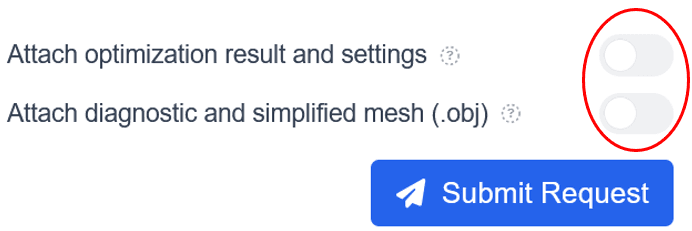
You can also attach the relevant mesh file and simulation settings to your support request, which helps our team reproduce the issue and identify the cause more efficiently. Our support team is trained to handle sensitive CAD-derived data with appropriate care and confidentiality.
Of course, you can also contact our support here: Contact Support |
First Packaging Level | In Smart Select, the First Packaging Level defines the smallest physical packaging type into which the individual parts are packed first. For example, you can start with a folding box and Pakera will first determine suitable folding boxes for the specified quantity of parts before considering additional, higher packaging levels. This follows the logical packaging process from the inside out and allows Pakera to build a suitable multi-level packaging solution step by step. Additional packing limitations can be defined to further control how the packaging solution is created.
Not every Level 1 packaging type is compatible with all other packaging types.
Example: A mesh box cannot be packed into a folding box. |
Flexible Layers | Parts are arranged in layers, but their position and orientation can vary within each layer to make better use of the available space. Flexible Layers combine a structured packing concept with greater flexibility for irregular part geometries. |
Generate Report (Button) | The Generate Report button is available in the Report Builder and creates the final PDF based on the currently selected report modules, settings, and custom content. Before generating the report, make sure all changes are saved and the Live Preview looks as expected. Once generated, the report is stored as a report version and can be downloaded or shared with others. |
Gross Weight | Gross Weight is the total weight of the packed unit, including the packed parts, the packaging or container, and any additional packaging materials used. It represents the actual total weight of the complete packaging unit. |
Help Center | The Help Center is your central source for information and guidance about Pakera. It includes comprehensive product documentation with step-by-step explanations and a glossary of important terms, an FAQ section for quick answers to common questions, and a Changelog where you can keep up with the latest features, improvements, and product updates. |
Horizontal Space | This setting is available in all Packing Modes and defines the minimum horizontal distance between individual parts during packing. It can be used, for example, to account for additional space required for individual transport protection, separation, or handling between adjacent parts. |
Intensity - gCO₂e/tkm | Emission Intensity describes how many grams of CO₂ equivalents are generated to transport one metric tonne of goods over one kilometer. A lower value generally indicates a more carbon-efficient transport operation. This KPI is particularly useful for comparing the relative climate efficiency of different routes, transport modes, or logistics scenarios independently of the total shipment size. In sustainability reporting, emission intensity can be used as an efficiency KPI to track and compare transport performance over time. |
Intermediate Layers | Intermediate layers can be added between packed layers of parts to provide additional protection, improve stability, and support safer handling and transport. Typical examples include sheets of cardboard, paper, foam, plastic, or other separating materials placed between individual packing layers. Pakera allows you to define both the number of intermediate layers and their individual thickness. The additional space required by these layers is then taken into account in the packing simulation, helping to create a more realistic representation of the complete packaging concept. If the option "Intermediate Layer Between Each Layer" is enabled, Pakera automatically places an intermediate layer between every packing layer. In this case, the number of intermediate layers is determined automatically based on the calculated packing arrangement, while the defined layer thickness is used to account for the additional space required.
By default, Pakera uses an intermediate layer thickness of 5 mm, which can be adjusted to match the actual material used in your packaging concept. |
Internal Dimensions | These values indicate the usable interior dimensions. |
ISPM 15 Compliance | Indicates whether wood packaging material complies with ISPM 15 requirements for the treatment and marking of wood packaging used in international trade. Can be confirmed in second workflow step, Packaging Material. |
Keep Container 1 Upright | This setting is only available in the Packing Mode Smart Stack. When enabled, Container 1 must remain upright when it is packed or stacked inside Container 2. Pakera will not tilt or rotate Container 1 into another orientation during the optimization. |
Limit Gross Weight | Use this setting to define a maximum gross weight for the complete packed container. Pakera takes this limit into account during the simulation and restricts the number of packed parts accordingly. This can be useful when the total package weight must remain below a specific threshold due to container load limits, manual handling or ergonomic requirements, transport restrictions, internal company standards, or other operational constraints. |
Limit Maximum Gross Weight for Container 2 | This setting is only available in the Packing Mode Smart Stack. It defines the maximum permitted gross weight of the complete stacked transport unit, including Container 2 and all Container 1 units placed inside or on it. Pakera considers this limit during the optimization to prevent solutions that exceed the specified maximum gross weight. |
Limit Maximum Quantity per Packaging Unit | Defines the maximum number of parts in "Smart Select" that may be packed into one packaging unit at the selected level. Pakera will not propose solutions that exceed this quantity, even if additional parts would geometrically fit. |
Limit Minimum Quantity per Packaging Unit | Defines the minimum number of parts (Smart Select Packing Mode) that should be packed into one packaging unit at the selected level. This can help avoid packaging solutions with an undesirably low number of parts per container. |
Limit Number of Units per Outer Carton | Defines the maximum number of packaging units from the previous packaging level that may be placed into one outer carton. Pakera considers this limit when searching for suitable outer-carton solutions, even if additional units would geometrically fit. |
Limit Outer Carton Dimensions | Defines the maximum permitted outer dimensions of the outer carton in length, width, and height. Pakera restricts the Smart Select search to outer cartons that remain within these specified dimensional limits. |
Limit Outer Carton Gross Weight | Defines the maximum permitted gross weight of a fully packed outer carton. Pakera takes this limit into account when determining how many packaging units can be placed inside the outer carton. |
Limit Packaging Unit Dimensions | Defines maximum permitted dimensions for the packaging unit in length, width, and height. Pakera restricts its search to packaging solutions that remain within the specified dimensional limits. |
Limit Packaging Unit Gross Weight | Defines the maximum permissible gross weight of each packaging unit in "Smart Select" at the selected level. Pakera takes this limit into account when searching for solutions and restricts the packed quantity accordingly. |
Limit Pallet Box Dimensions | Defines the maximum permitted dimensions of the pallet box in length, width, and height. Pakera restricts the Smart Select search to pallet boxes that remain within the specified dimensional limits. |
Limit Pallet Box Gross Weight | Defines the maximum permitted gross weight of a fully packed pallet box. Pakera considers this limit when searching for suitable solutions and restricts the packed quantity accordingly. |
Limit Pallet Gross Weight | Defines the maximum permitted gross weight of the complete palletized load, including the pallet and all packaging units placed on it. Pakera takes this limit into account when determining how many packaging units can be loaded onto each pallet. |
Limit Selection of Container Type | Defines which containers (10 ft, 20 ft, 40 ft, 45 ft) Pakera may consider when searching for a suitable container-loading solution. You can allow all available containers or restrict the search to Company Standards, Favorites, or individually selected container types and sizes. Pakera then considers only the selected containers when calculating the final packaging level. |
Limit Selection to the Following Outer Cartons | Allows you to define which outer cartons Pakera may consider when searching for a suitable packaging solution. This can be used to restrict the optimization to selected containers, such as approved company standards, favorites, or specific available outer cartons. |
Limit Selection to Specific Packaging Units | Allows you to define exactly which available packaging units Pakera may consider during Smart Select. You can search across all available containers or restrict the selection to specific company standards, favorites, or individual containers. This is particularly useful when only approved, available, or preferred packaging may be used. Pakera then searches for suitable solutions exclusively within the selected packaging options. |
Limit Vertical Layers | This setting is only available in the Packing Mode Smart Stack. By default, Pakera can use as many vertical layers of Container 1 as geometrically possible inside Container 2. Enable this option to define a maximum number of vertical layers and restrict how high Container 1 units may be stacked within Container 2. |
Material Categories for Weight Calculation | The Material Manager provides a structured selection of material categories with predefined density values to support material selection and part weight estimation. Available categories include inorganic non-metals such as glass, ceramics, and natural stone, building materials, liquids, metals including non-ferrous metals and steels, organic natural materials such as wood and food, as well as polymers including thermosets, elastomers, and thermoplastics. Each category contains corresponding materials and typical density values, making it easier to select a suitable reference material when the exact part weight or material density is not available. |
Materials: My Materials | A material created by a user for their own use. New custom materials can be created and managed in the Material Manager. |
Materials: My Company Materials | A material created by a company for standardized use across teams. Company materials can only be created and managed by administrators or users with the required permissions. |
Materials: Favorites | Your favorite materials for quick and easy access. Favorites can be selected and managed in the Material Manager. |
Material Manager | The Material Manager is your central library for materials and their density values in Pakera. It includes more than 280 predefined materials that can be used to estimate part weight when the exact weight is not available. You can select from categories such as thermoplastics, elastomers, thermosets, steels, non-ferrous metals, glass, ceramics, natural stone, wood, building materials, liquids, and food. You can also create and manage your own materials for repeated use in future simulations.
Companies can additionally create and maintain shared materials that are available across the entire organization. This helps standardize material data, avoid duplicate entries, and ensure that teams work with consistent density values. |
Max Load (Container) | Max. Load defines the maximum permissible payload that can be placed inside or on the container. Pakera uses this value to determine whether the packed parts remain within the defined load capacity of the selected container. |
Maximum Permissible Stacking Load | This setting is only available in the Packing Mode Smart Stack. It defines the maximum load that may be applied from above to one Container 1 during stacking. Pakera uses this value to limit stacking configurations that would exceed the specified load-bearing capacity of the lower container. |
Messages | Here you can view messages and notifications from Pakera Support related to requests submitted through the internal ticket system. You may also receive updates about new Pakera features, product improvements, and important platform changes. Direct user-to-user messaging is currently not available in Pakera. Messages and comments between users can only be exchanged as part of the Approval Process. These conversations are shown within the relevant approval workflow and do not appear in the Messages section. |
Net Weight | Net Weight is the total weight of the packed parts or products, excluding the weight of the container and any additional packaging materials. |
New Simulation (Button) | The "New Simulation" button starts the process of creating a new packaging simulation (Workflow step 1 in workbench screen). It opens a new project where you can upload or define your part and configure the required settings for a new optimization job. |
Next Approval Process (Button) | The "Next: Approval Process" button takes you from the Report Builder to the fifth and final workflow step, Approval Process, where you can share the selected report content with internal or external stakeholders for review, feedback, and approval. |
Next Packaging Report (Button) | The "Next: Packaging Report" button takes you from the Transport & Emissions step to the fourth workflow step, Report Builder, where you can configure and create your packaging report using the results and information from the previous workflow steps. |
Next Transport & Emissions (Button) | The "Next: Transport & Emissions" button takes you from the Packaging Material step to the third workflow step, Transport & Emissions, where you can define transport routes and calculate shipping costs and transport-related emissions. |
Offsets | Part offsets allow you to define additional clearance around a part in all three spatial directions for the packing simulation. The specified offsets increase the effective space occupied by the part and are therefore taken into account when calculating the packing arrangement. This can be used to simulate additional protective packaging that requires a defined amount of space around the part, such as foam inserts, cushioning materials, or other transport protection. By adjusting the offsets individually, the simulation can more closely represent the space requirements of the actual packaging concept without having to model the protective material itself. |
Optimization Jobs | An Optimization Job is a single simulation run performed within a Pakera project. Each job uses the selected packing mode, packaging configuration, and simulation settings to calculate and evaluate a packaging solution. A project can contain multiple Optimization Jobs, allowing you to test different configurations and compare alternative packaging solutions without creating a new project each time. Previous Optimization Jobs can be accessed through the Project History. |
Optimize Compartment Sizes Automatically | When enabled, Pakera automatically determines a suitable number and size of compartments based on the available container space and the parts to be packed. This is the recommended setting for most simulations. The compartment divider thickness can still be defined manually. |
Optional Packing Limitations | In Smart Select, Optional Packing Limitations allow you to define additional requirements that Pakera should consider when searching for suitable packaging solutions. This gives you greater control over the optimization and helps ensure that the proposed solutions meet your operational, logistical, or company-specific requirements. |
Our Part Number | You can assign your own internal part number to each container in the Container Manager for easy identification and reference. |
Outer Dimensions | The values describe the external dimensions of a choosen container or the simulated packaging solution. |
Package Name | The Package Name identifies the selected container or packaging type. It can either be a custom name assigned by the user or a predefined standard name provided by Pakera for containers from the Standard Container Library. |
Package Type / Container type | Package Type defines the type of container, packaging, or load carrier used in a packaging simulation. Selecting the correct type helps structure packaging data consistently and makes it easier to manage, compare, and reuse packaging solutions in Pakera. Pakera currently supports Euro Container, Folding Box, Maxi Letter, Mesh Box, Pallet, Pallet Carton, SLC Container, and Custom package types. |
Package Overview | The Transport Overview summarizes the key information required to organize a shipment in one clear view. It shows the total package volume, total weight, chargeable weight, and the required number of transport units, such as pallets, containers, or cartons, based exclusively on the highest packaging level of the selected solution.
This overview can be found in step 3 of the workflow, Transport & Emissions. |
Package Overview (detailed) | The Detailed Transport Overview provides a complete breakdown of the transport and packaging values across the individual packaging levels. It allows you to trace how the summarized transport values were calculated and understand the underlying packaging structure in detail. This overview can be found in step 3 of the workflow, Transport & Emissions. |
Packaging Cost per Part | Displays the calculated packaging material costs per part based on the defined packaging solution and the assigned material costs. |
Packaging Instructions | Packaging Instructions can be created directly in the Report Builder to document how a packaging solution should be implemented in practice. You can build a step-by-step packing guide and add an individual title, formatted instructions, and images to each step. Images can be uploaded and annotated directly in Pakera, for example with arrows, shapes, markings, or text to highlight important details. Different layouts and image ratios can also be selected to create clear and easy-to-follow instructions. Additional steps can be added as needed, allowing you to document the complete packing process from the first preparation step to the finished packaging unit. The Packaging Instructions are then included as a dedicated module in the final report, helping ensure that the defined packaging concept can be communicated and reproduced consistently in day-to-day operations. |
Packaging Optimization | Packaging Optimization is the process of improving a packaging solution to achieve the most efficient arrangement of products or parts within a container or load carrier. It primarily focuses on geometric factors such as part orientation, packing pattern, quantity, space utilization, container dimensions, and stacking configuration. The goal is to identify a technically feasible and space-efficient packaging solution while minimizing unused space and unnecessary packaging volume. |
Packaging Planning | Packaging Planning is the broader process of developing, evaluating, coordinating, and documenting a packaging solution for operational use. It includes Packaging Optimization, but goes beyond the geometric arrangement of products by considering packaging materials and bills of materials, packaging design, costs, handling and logistics requirements, compliance and regulatory requirements, coordination and approval between involved parties, and the creation of standardized packing instructions. |
Packed Parts | Packed Parts is the total number of parts placed inside a container or on a load carrier in the calculated packaging solution. For layered packing methods, the total is typically calculated from the number of Parts per Layer multiplied by the Number of Layers. If additional parts are placed outside the regular layer structure, these are added separately. Example: 20 parts per layer × 4 layers = 80 packed parts. If 3 additional parts are placed outside the layers, the total number of Packed Parts is 83. |
Packing Method | Pakera supports 6 packing methods: Bulk packing, rigid layers, flexible layers, stacking, compartments and paired parts. This helps packaging planning teams evaluate which method fits the part geometry, handling logic, and process requirements best. |
Packing Mode | Pakera supports 3 Packing Modes: Smart Fill, Smart Select and Smart Stack
Packing Mode defines the type of packaging simulation you want to perform in Pakera. It determines the basic optimization objective, such as how many parts fit into a container, which container is most suitable, or how packaging units can be stacked into a larger container or load carrier. |
Packing Overview | The Packing Overview provides a clear visual summary of the complete packaging configuration and hierarchy calculated by Pakera. It shows how parts are packed step by step across the different packaging levels, from the first packaging unit through intermediate packaging and load carriers to the final transport unit. For each packaging level, the overview displays key information such as the number of units packed per package, total number of parts, number of layers, units per layer, gross weight, maximum load, and the number of packages required. This makes it easy to understand the complete packaging structure at a glance and see how the individual packaging levels build on each other. |
Paired Parts | Two corresponding parts are treated as one defined packing unit, such as left-hand and right-hand variants. Keeping matching components together can simplify identification, picking, handling, and downstream assembly processes. |
Pallet Height | Defines the maximum permitted height of the complete palletized load. Pakera uses this value when arranging packaging units on the pallet and limits the stacking height accordingly. |
Part Assembly (Marriage) | Part Assembly (Marriage) allows Pakera to first combine multiple parts into an optimized assembly before searching for suitable packaging solutions for the assembled unit. By arranging the parts in a favorable position relative to each other, this method can significantly improve space utilization and increase the achievable packing density. However, the most space-efficient assembly is not always the easiest to handle in practice. Depending on the part geometry and orientation, packing and removal may take longer, require more manual effort, or be unsuitable for automated handling equipment. The result should therefore always be evaluated not only for packing efficiency, but also for practical handling and process requirements.
In practice, combining two parts has proven to be a particularly effective starting point and often provides a good balance between improved space utilization and practical handling. |
Part Volume | The part volume is normally calculated from the simplified mesh geometry, which generally provides a sufficiently accurate result for packaging optimization. If the mesh is not fully closed, Pakera automatically uses alternative fallback methods, including BVH Monte Carlo and convex-hull-based approximation. In these cases, the calculated volume may be slightly less accurate than with a closed mesh. |
Part Weight | Part Weight is the weight of a single part used in the packaging simulation. If the exact weight is known, you can enter it directly. Alternatively, you can enter a known material density or select a reference material from Pakera’s material library, allowing Pakera to estimate the part weight based on its geometric volume and the selected material density. |
Parts per Layer | Parts per Layer is the number of parts packed within a single layer of the container or load carrier. Together with the number of layers, it determines the total number of packed parts. |
Parts without Layers | Parts Without Layers is the number of additional parts packed outside the regular layer structure. This typically occurs when part rotation is allowed and Pakera can use the remaining available space more efficiently by placing additional parts in different orientations. These parts are added to the parts packed in complete layers to determine the total number of Packed Parts. |
Pakera Score® | The Pakera Score® is a proprietary, standardized rating system that helps you quickly evaluate and compare packaging solutions. It combines key factors from Logistics Efficiency, Security & Compliance, and Sustainability into a single score of up to 100 points, providing an easy-to-understand indication of the overall quality of a packaging solution without replacing a detailed assessment of the individual criteria. |
PFAS-free | Indicates whether the packaging material is declared free from per- and polyfluoroalkyl substances (PFAS) according to the applicable criteria.
Can be confirmed in second workflow step, Packaging Material. |
PPWR Declaration of Conformity (DoC) | Pakera can also generate a Declaration of Conformity based on the information provided within the packaging workflow. This helps users create consistent documentation without having to compile all relevant information manually. However, responsibility for the Declaration of Conformity remains with the manufacturer or other legally responsible party issuing it. Pakera does not independently verify the accuracy, completeness, or legal sufficiency of the entered data and therefore cannot confirm that the generated declaration is complete or compliant in every individual case. Before issuing or signing the declaration, the responsible party should therefore review all information and ensure that all applicable requirements have been fulfilled. |
PPWR Package Type | For PPWR-related documentation, Pakera distinguishes packaging according to its function within the packaging hierarchy. Regulation (EU) 2025/40 defines these categories in Article 3(1), points (5) to (7). The Regulation also clarifies that Sales Packaging corresponds to primary packaging, Grouped Packaging to secondary packaging, and Transport Packaging to tertiary packaging.
Sales Packaging (SP) is packaging that forms a sales unit together with the product for the end user at the point of sale.
Grouped Packaging (GP) combines several sales units into one grouping, for example for distribution, shelf replenishment, or stock handling.
Transport Packaging (TP) facilitates the handling and transport of one or more sales units or grouped packaging units and is intended to help protect products during handling and transport. Pakera also allows combinations such as TP + SP, TP + GP, SP + GP, or TP + SP + GP when a packaging solution performs more than one of these functions. The appropriate classification should always be determined based on the actual function of the packaging in the specific use case.
Users can optionally select the relevant PPWR Package Type in the second workflow step, Packaging Material. This classification is only required when PPWR-related documentation is needed and can otherwise be left unspecified. |
PPWR Packaging Description | Provide a short description of the packaging unit, including its intended function and the main packaging materials used. This information is used as part of the PPWR-related technical documentation and Declaration of Conformity generated by Pakera. |
PPWR: Date of First Market Placement | Enter the date on which the packaging type was first placed on the EU market. This information is used for the PPWR Declaration of Conformity and the related technical documentation. |
PPWR Technical Documentation | Pakera can automatically generate technical documentation directly within the Report Builder, helping you reduce manual documentation effort and keep relevant information connected to your packaging solution. Pakera focuses on the flow of goods in the industrial sector. Automatic generation is only available once all required data has been provided. This includes the necessary packaging information, a description of the packaging, and the date on which the packaging was first placed on the market. For packaging minimization, the PPWR explicitly recognizes modelling and simulations as relevant sources that may be used to assess the minimum necessary packaging volume or weight. Article 10(4)(c) of Regulation (EU) 2025/40 states that the technical documentation may include “modelling and simulations” used for this assessment. Pakera therefore uses applicable simulation results as part of the technical documentation, provided that the required underlying information is complete and the relevant PPWR requirements are fulfilled. The manufacturer remains responsible for the conformity assessment and the completeness of the technical documentation under the PPWR. |
Private Key / Customer Managed Key (Button) | Customer-Managed Keys (BYOK) provide an additional layer of protection for customers who want greater control over the encryption of their CAD-derived data. With BYOK enabled, the mesh data generated from the original CAD files is additionally encrypted using a customer-managed key. This additional encryption applies specifically to the mesh data and not to the entire project or other project-related data. |
Project | In Pakera, a project consists of at least one simulation, but it can also include multiple simulation jobs. Each individual simulation job can be used as the starting point for a workflow.
Projects and project tasks can be accessed through the dashboard. |
Project History | The Project History provides a chronological overview of all optimization jobs performed within a project. It can be accessed directly from the Simulation screen and allows you to review previous optimization runs and trace the simulation history of the project over time. |
Project Notes | Project Notes are available directly in the Report Builder and provide a dedicated space for recording internal information, comments, assumptions, decisions, or other notes related to the packaging project. They can be used to capture important background information throughout the project and keep relevant knowledge connected to the packaging solution. Unlike report content, Project Notes are intended for internal project documentation and are not included in the generated packaging report. |
Project-ID | The project ID consists of 8 digits for the project, a seventh digit for the simulation job, and an eighth digit for the report version. This allows each simulation job and each report version to be uniquely identified and tracked transparently.
Example: 13546421-3-1 Project No 13546421, simulation job 3, report version 1. |
Project Logbook | The Logbook provides a chronological record of important activities related to the report and helps maintain transparency throughout the documentation process. It records relevant events, such as when a report was generated, allowing users to track the report history and understand when key actions were performed. This creates a clear audit trail and makes it easier to trace the development and documentation history of a packaging project. |
Project Name | The name assigned to your project. If no project name is entered, the name of the uploaded CAD file is automatically used as the default project name. |
Put First-Level Packaging in Outer Cartons | Enables an additional packaging level by grouping multiple first-level packaging units into outer cartons. This can provide greater stability and additional protection during handling and transport while creating larger, standardized shipping units. (Cartonization)
Multiple packing levels can be combined to create multi-level packaging solutions. Pakera then builds the top 5 packaging hierarchy suggestions automatically within few seconds step by step, for example from part → folding box → outer carton → pallet → freight container. |
Put Packaging Units in Containers | Allows Pakera to load packaging units from the previous level into suitable freight containers. This adds a container-loading level to the packaging hierarchy and helps evaluate how the previously calculated packaging units can be consolidated for transport. |
Put Packaging Units in Pallet Boxes | Allows Pakera to place packaging units from the previous packaging level into suitable pallet boxes. This can be useful for consolidating multiple smaller packages into a larger, protected load unit for storage and transport. |
Put Packaging Units on Pallets | Allows Pakera to arrange packaging units from the previous level on suitable pallets. Pakera searches for appropriate palletization solutions to consolidate the packaging units into larger load units for efficient handling, storage, and transport. (Palletization) |
REACH Compliance | Indicates whether the packaging material meets the applicable requirements of the EU REACH Regulation concerning the registration, evaluation, authorization, and restriction of chemicals.
Can be confirmed in second workflow step, Packaging Material. |
Report Builder | The Report Builder is the fourth step in the Pakera workflow and turns the results from the previous workflow steps into a professional, structured packaging report. The information shown in the report is based on the simulation results, packaging materials, and transport routes selected earlier in the workflow, helping ensure that all documentation remains consistent. The Report Builder is designed to make report creation fast and highly modular. Instead of rewriting information or manually compiling a new document for every project, you simply select the modules you want to include and arrange them in the preferred order. Available modules can include Packaging Visualization, Packaging Configuration, Packaging Overview, Bill of Materials, Packaging Material Compliance, Packaging Instructions, Quick Notes, Transport, Sustainability, Total Compliance Assessment, and PPWR-related documentation. Packaging Instructions are created manually within the Report Builder. This gives you the flexibility to add step-by-step instructions, images, and other relevant information needed to create a complete and practical packing instruction for operational use. You can also add custom text sections before or after each module to include project-specific explanations, assumptions, comments, or additional information. A live preview shows your changes immediately while you build the report, so you can review the structure and content before generating the final document. Once completed, the report can be generated as a PDF, downloaded, or shared by email directly from Pakera. This modular approach helps you create consistent, reusable, and professional packaging documentation in significantly less time, without having to recreate the same information for every project. |
Report Preview | The Report Preview provides a live view of the final PDF directly within the Report Builder. As you select, arrange, or modify report modules and content, you can immediately review how the report will look before generating the final document. This makes it easy to check the structure, content, and presentation of your report and make adjustments where necessary. Once everything looks right, you can generate the final PDF without having to repeatedly download and review intermediate versions. |
Requested Container 1 Quantity | This setting is only available in the Packing Mode Smart Stack. It defines how many Container 1 units Pakera should attempt to place inside Container 2. Enter a specific quantity if a defined number of units is required. Leave the field empty to let Pakera maximize the number of Container 1 units that can be placed inside Container 2. |
Reset List (Button) | The Reset List button restores the Packaging Material list to its last saved state. Any unsaved changes, additions, or adjustments made since the last save will be discarded. |
Reuse | Indicates that the packaging or packaging component is intended to be used multiple times rather than being discarded after a single use. |
Recycle | Indicates that the packaging material is intended to be recyclable and can potentially be processed into secondary raw material after use. |
Rigid Layers | Parts are arranged in clearly defined, identical layers with a fixed packing pattern. Rigid Layers provide predictable part positions and make the packing process easy to reproduce and standardize. |
Route Map | The Route Map visualizes the fastest available route between the selected origin and destination. The calculated route takes the selected transport mode into account and includes relevant pre-carriage and onward transport sections where required, providing a realistic representation of the overall transport route. This route is calculated by EcoTransIT World, together with the transport emissions. |
Route Segment | A Route Segment represents one individual section of a shipment from a defined origin to a destination using a specific transport method, such as road, rail, air, or sea freight. For each segment, you can define the relevant route and transport parameters as well as the billing basis used to calculate shipping costs. Multiple Route Segments can be combined to represent multimodal or multi-stage transport chains, for example truck → sea freight → truck. Pakera uses the individual segments to calculate and summarize the shipping costs and transport-related emissions for the complete transport route. |
Settings | Settings is the central place to manage your personal preferences, account settings, company configurations, and subscription options in Pakera. Depending on your role and subscription, you can update company information, manage administrative settings, subscribe to or unsubscribe from notifications, switch between metric and imperial units, change the application language, manage subscription-related settings, and delete your account data when required. |
Select Pallet Box Type | Allows you to define which pallet boxes Pakera may consider when searching for a suitable packaging solution. You can search across all available pallet boxes or restrict the selection to specific company standards, favorites, or individual pallet box sizes. Pakera then considers only the selected options when calculating the next packaging level. |
Stable Positions | Stable Positions define the orientations in which a part may be placed during the packing simulation. They help prevent unrealistic or unstable part orientations and improve the practical feasibility of the calculated packing result. Pakera automatically analyzes the part geometry and suggests the five most suitable stable positions, ranked from most to least suitable. You can freely choose between these five proposed positions and select the stable position that best matches your packaging, handling, and process requirements. |
Stacking | Parts are placed directly on top of each other to make efficient use of the available container height. Stacking is particularly suitable for parts that can be safely stacked while maintaining the required orientation and stability. |
Start Optimization (Button) | Button in the Workbench/Simulation screen used to start a new packaging optimization job. |
Smart Checks | Every packaging simulation in Pakera automatically runs Smart Checks to provide a structured assessment of the calculated packaging solution. Depending on your subscription plan, the number of available Smart Checks may vary. The combined results are summarized in the Total Compliance Assessment. Search for “Total Compliance Assessment” in the Help Center to learn more about the available Smart Checks, their individual assessments, and how the overall score is determined. |
Smart Check: Chargeable Weight | The Chargeable Weight Check compares the actual gross weight of the packed container with its volumetric weight. Pakera calculates the volumetric weight based on the package dimensions using length × width × height in centimeters and, by default, a divisor of 5,000, then determines which value is relevant for the chargeable weight. This helps identify packaging solutions where excessive volume may increase the billable shipment weight and therefore lead to higher freight costs. The result is intended as guidance only, as the applicable volumetric-weight formula, divisor, and billing rules may vary by carrier, transport mode, and freight agreement. |
Smart Check: Container Load | The Container Load Check evaluates whether the calculated gross weight of the packed container remains within its defined maximum load or gross weight limit. Pakera compares the simulation result with the permissible limit stored for the selected container and also considers how much of the available load capacity is already being used. A sufficient remaining weight reserve results in a more favorable assessment, while solutions approaching or exceeding the defined limit are highlighted for closer review. If no applicable weight limit is available, Pakera cannot perform a complete load assessment. |
Smart Check: Operator Safety | The operator safety assessment indicates whether the calculated package or load weight is suitable for the expected handling process. Pakera compares the gross weight with the weight ranges appropriate for the selected packaging or load carrier category, taking international guidelines into account. For manually handled packages, lower weights are generally viewed more favorably, while heavier packages may require an additional ergonomic assessment or the use of conveyor systems. For pallets, large load carriers, and freight containers, the assessment takes into account whether the weight can be handled appropriately using suitable industrial equipment. This assessment does not replace a workplace hazard assessment or an ergonomic evaluation of the actual handling process. |
Smart Check: Transport Safety | The Transport Safety Check evaluates whether the calculated gross weight is within a range that can generally be handled and transported using typical transport and material-handling equipment. The assessment depends on the selected packaging or load-carrier category and compares the calculated weight with the applicable transport limits used by Pakera. As the load approaches these limits, Pakera recommends additional review. Loads exceeding the relevant range are identified as potentially requiring special transport or handling arrangements. Actual transportability always depends on the carrier, vehicle, route, equipment, and applicable regulations and therefore requires final verification by the responsible user. |
Smart Check: Warehouse Safety | The Warehouse Safety Check evaluates whether the calculated load is within a typical weight range for storage in standard industrial warehouse systems. Pakera uses the gross weight of the packaging solution to assess whether standard rack storage appears reasonable or whether the load may require additional verification or heavy-duty storage equipment. As load weight increases, users are advised to verify the actual load ratings of the racks and storage equipment being used. Freight containers that are not intended for rack storage are excluded from this check. The assessment does not replace verification of the permissible shelf, bay, or rack loads of the actual warehouse system. |
Smart Check: Plausibility | The Plausibility Check examines whether the calculated number of packed parts is geometrically reasonable. Pakera compares the simulation result with a plausible range derived from the available container and part geometry. Among other factors, the available container volume, the part volume, and the geometric space requirements of the part are used to identify results that fall outside geometric reasonable boundaries. Unusual results are highlighted for manual review. This check is particularly useful for detecting potential inconsistencies in mesh files, simulation failures, simulation inputs or optimization results. |
Smart Check: Transport Efficiency | The Transport Efficiency Check evaluates how efficiently the available capacity of the selected packaging is being used. Pakera considers both volume utilization and weight utilization and assesses the packaging solution based on the more relevant utilization potential. Higher utilization generally indicates that more products can be transported within the available capacity, which may reduce empty space and improve transport cost efficiency per part. Low utilization indicates that there may still be potential to improve the packaging concept or select a more suitable container. The check evaluates packaging-related transport efficiency and does not calculate or validate actual carrier freight rates. |
Smart Check: Sustainability | The Sustainability Check provides an overall indication of how efficiently the packaging solution uses resources and transport capacity. Pakera uses a proprietary assessment methodology that considers factors such as volume and weight utilization as well as selected characteristics of the packaging concept, including relevant protective (e.g. cut protection) and reusable packaging features. Efficient use of container capacity generally results in a more favorable assessment because fewer packaging or transport units may be required for the same quantity of parts. Additional packaging characteristics can also influence the assessment where they contribute to resource efficiency or help prevent avoidable product damage. The Sustainability Check is a decision-support indicator and should not be interpreted as a life-cycle assessment, verified environmental claim, or calculation of the actual carbon footprint of the packaging solution. |
Smart Fill | Answeres the question: How many parts fit into a selected container? Smart Fill determines the maximum number of parts that can be packed into a choosen container based on the selected packing method and simulation parameters. |
Smart Select | Answeres the question: Which packaging solution is best for a defined number of parts? Smart Select compares thousands suitable packaging options and identifies the most appropriate solutions based on your requirements and selected parameters. It can therefore be used in multi-level packaging planning to determine the optimal packaging configuration. |
Smart Stack | Answeres the question: How many smaller packaging units fit into a larger container or load carrier? Smart Stack determines how cartons, containers, or other packaging units can be arranged and stacked within a larger packaging unit or load carrier. |
Supplier | The Supplier identifies the company or vendor from which the packaging material or container is sourced. Users can assign and manage supplier information for individual containers in the Container Manager. |
Supplier No | Supplier number in your supplier management system. Can be defined in the Container Manager. |
Supplier Part Number | The Supplier Part No. is the supplier-specific identification or article number assigned to a container or packaging material. It helps ensure that the correct item can be clearly identified when ordering, sourcing, or communicating with the supplier. Users can also assign purchasing information such as cost and minimum order quantity (MOQ) to container types in the Container Manager. These values can then be considered automatically in the Bill of Materials, making it easier to estimate the packaging material costs of a newly simulated packaging solution. Can be defined in the Container Manager. |
Supplier Unit Price | Price of a container or load carrier, which can be defined in the Container Manager and automatically used in future packaging material cost calculations. |
SVHC-free | Indicates whether the packaging material is declared free from Substances of Very High Concern (SVHC) according to the applicable criteria. Can be confirmed in second workflow step, Packaging Material. |
Tare Weight | Tare Weight is the empty weight of the container or load carrier itself, without any parts or additional contents. It is added to the payload weight to calculate the total gross weight of the packed container or load carrier. |
Transport Activity - tkm | Transport Activity represents the amount of freight transport performed and is expressed in tonne-kilometers (tkm). One tonne-kilometer corresponds to transporting one metric tonne of goods over a distance of one kilometer. For example, transporting 5 tonnes over 200 km represents 1,000 tkm of transport activity. Tonne-kilometers provide an important activity metric for sustainability analysis because they relate the transported mass to the transport distance and provide the basis for calculating and comparing transport emission intensity. |
Total Compliance Assessment | Every packaging simulation in Pakera automatically runs 8 Smart Checks to provide a structured assessment of the calculated packaging solution. This section is called "Total Compliance Assessment".
The checks evaluate key aspects related to chargeable weight, container load, operator and transport safety, warehouse suitability, result plausibility, transport efficiency, and sustainability. The Smart Checks are designed as decision-support indicators that help identify potential risks, inefficient configurations, and areas requiring closer manual review. They are based on the available simulation data and defined parameters and do not replace physical testing, regulatory assessments, or professional engineering judgment.
Each Smart Check contributes to an overall result ranging from 0 to 8 points. A higher score indicates that more of the defined checks have been successfully passed, while a lower score highlights areas that may require closer review or adjustment.
The final evaluation and implementation of a packaging solution remain the responsibility of the user and the appropriately qualified persons. Pakera does not independently verify all input data or real-world conditions and accepts no liability for damages resulting from decisions made solely on the basis of Smart Check results. |
Total Distance | Total Distance is the combined transport distance across all Route Segments of the shipment. For multi-stage or multimodal routes, Pakera adds the distances of all individual segments to provide the total distance traveled from the initial origin to the final destination. |
Total Packaging Cost | Shows the estimated total packaging material cost for the specified number of parts to be shipped. |
Total Parts Shipped | Defines the total number of parts to be shipped and serves as the basis for calculating the overall packaging material requirements and costs. Usually, this quantity is automatically derived from the preceding packaging simulation. |
Total Volume | Volume of the packaging unit or the loaded load carrier. |
Tutorial Videos | Pakera offers detailed self-service video tutorials to help you get the most out of the platform. Learn essential features and workflows at your own pace, explore advanced functionality, and discover practical tips and tricks to work more efficiently with Pakera. |
Vertical Space | This setting is available in all Packing Modes and defines the minimum vertical distance between individual parts or layers during packing. It can be used, for example, to account for additional protection, separation, or other required clearance between vertically stacked parts. |
Volume Utilization | Volume Utilization is the percentage of the container’s available internal volume that is effectively occupied by the packed parts or products. It indicates how efficiently the available packaging space is being used. For this calculation, Pakera uses the Minimum Bounding Box (MBB) of each part. The MBB represents the smallest rectangular volume that fully encloses the part. The combined volume of all packed MBBs is compared with the container’s internal volume to determine the utilization rate. Additional packaging materials, such as cardboard dividers or other protective components, are not counted as occupied part volume and are therefore treated as part of the remaining empty space. |
Net Weight Utilization | Weight Utilization represents the net utilization of a container’s available payload capacity. Pakera first subtracts the container’s empty weight from its maximum permissible gross weight to determine the maximum available net payload. The actual Net Weight of the packed parts is then compared with this available payload capacity:
Weight Utilization = Net Weight / (Maximum Permissible Gross Weight − Empty Weight) × 100
This shows how efficiently the usable weight capacity of the container is utilized by the packed parts.
|
Workbench | The Workbench is the central workspace for creating packaging simulations. Here you select the packing mode, packing method, define your stable positions and packaging, configure simulation parameters, and calculate packaging solutions.
Once the simulation is complete, you can continue the workflow directly from the Workbench by creating a packaging bill of materials (BOM), calculating shipping costs, generating a report, and starting the review and approval process. |
Workflow | The Pakera workflow guides you step by step from the initial packaging simulation to a documented and approved packaging solution. It covers five connected stages: Simulation, Packaging Material, Transport & Emissions, Report Builder, and Approval Process, helping you evaluate not only how a part is packed, but also the materials, logistics impact, documentation, and final approval.
The workflow can be accessed in the Workbench.
5 Workflow steps are available (optional):
Simulation Create and optimize your packaging solution by defining the part, container, packing method, and relevant simulation parameters. Packaging Material Pakera automatically generates a list of the packaging materials required for your selected solution. You can review and edit the list, add additional materials, and calculate the resulting packaging material costs. Transport & Emissions Estimate the transport costs and transport-related emissions resulting from your packaging solution based on the selected logistics parameters. Report Builder Create a clear, standardized report that documents your packaging solution, simulation results, and other relevant project information. Approval Process Share the packaging solution with internal or external stakeholders for review, collect feedback, and obtain formal approval within a structured workflow. |
Workflow: Simulation | The Simulation step is where you create and optimize the actual packaging solution. You define the part, select the container and packing method, configure the relevant simulation parameters, and run the calculation. Pakera then evaluates the selected setup and provides the resulting packing arrangement together with key technical and logistical values. |
Workflow: Packaging Material | In the Packaging Material step, Pakera brings all relevant packaging components into one structured overview. The system automatically generates the materials required for the selected solution, while you can review and adjust quantities, add further secondary and tertiary packaging components, and complete the packaging concept as needed. You can also maintain relevant PPWR information, upload supporting files as documentation or evidence, and enter material prices to calculate the total packaging material costs. This gives you a clear overview of the packaging structure, compliance-related information, and associated material costs in one place. |
Workflow: Transport & Emissions | The Transport & Emissions step helps you evaluate the logistics impact of your packaging solution from both a cost and sustainability perspective. Pakera does not provide freight rates directly, so the relevant transport rates must be entered by the user based on their own carrier agreements, quotations, or internal cost assumptions. Using these inputs, Pakera can estimate the resulting transport costs for the selected packaging solution. Transport-related emissions are calculated through an integrated EcoTransIT API, allowing you to include emissions data directly in the same workflow and compare packaging concepts beyond geometric efficiency alone. |
Workflow: Report Builder | The Report Builder turns your simulation and workflow data into a professional, structured report. Its modular design allows you to select, combine, and arrange only the sections that are relevant to your specific project, such as packaging visualization, configuration, bill of materials, material compliance, transport, sustainability, the Total Compliance Assessment, customized text fields, individual created packaging instructions, or PPWR-related documentation incl. Declaration of Conformity. This flexibility allows you to create reports tailored to different purposes and stakeholders without manually compiling information from multiple sources. Pakera automatically brings the selected content together in a consistent format, making packaging solutions easier to document, share, review, and archive. |
Workflow: Approval Process | The Approval Process allows you to share a packaging solution with internal or external stakeholders for structured review and approval. The creator generates a secure web link that includes the simulation results and the content selected for the report/approval process.
The Approval Process is based on the report and always uses the same content selected in the Report Builder. It is not possible to include different content in the approval process than in the corresponding report. Invited reviewers can access the shared content through this secure link without needing a Pakera account. For invited users that function is free of charge. Users without an account receive a one-time password (OTP) for secure access, and the link remains available only for the limited period defined by the creator (default 14 days). During the review, invited users can send private feedback directly to the creator or share comments with the invited group for open discussion. This keeps feedback, decisions, and the relevant packaging information in one place, creating a clear Single Source of Truth and making the approval process more transparent, efficient, and traceable. |
Quantity to be packaged | Quantity to be packaged is only used in Packing Mode "Smart Select" and defines the total number of parts that need to be packed. Pakera uses this quantity to search for suitable packaging solutions and determine how the specified number of parts can be distributed across the required packaging units and packaging levels. |
Quick Notes | Quick Notes can be selected directly in the Report Builder and allow you to add frequently used logistical and handling requirements to your report with a single click. Instead of manually writing the same instructions for every project, simply activate the relevant Quick Notes when configuring your report, and Pakera automatically includes them in the generated document. Available Quick Notes cover common requirements such as Do not stack, Easily breakable, Edge protection required, Keep container always upright, Temperature-sensitive, Moisture-sensitive, Shock-sensitive, Strapping required, or Dangerous goods inside. Additional options are available for specific storage and loading requirements, such as Mixed loading prohibited, Outdoor storage possible, or Only indoor storage permitted. This makes it quick and easy to add standardized handling information exactly when you need it, while avoiding repetitive manual work and helping ensure that important instructions are not forgotten. |